Softaken EML to G Suite Importer
Software Option
The user interface contains few buttons:

| Option | Description |
|---|---|
| Browse button | It helps you to add EML files. |
| Folder Mode | use this option to Select Folder and Sub Folders |
| File Mode | use this option to Select Few EML/EMLX Files |

| Option | Description |
|---|---|
| Add | Use this option to Add EML/EMLX files |
| Upgrade | Use this option to Upgrade your License from Personal to Busines or Enterprise use |
| Support | Use this option to Contact Our Support Team |
| Close | Use this option to Close this application |
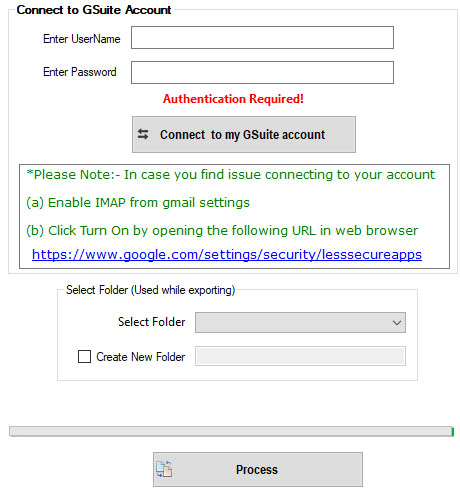
| Option | Description |
|---|---|
| Connect to my G Suite Account | Enter your credentials and authenticate your account |
| Select Folder | Choose your folder where you want to import your EML/EMLX files |
| Create New Folder | Check this Box and create user define folder in Gmail account |
| Process | Click on Process to start import process |